
Discounts in Your Shopify Campaigns, New Scopes, Pause a Post Inside a Campaign
Introducing Discounts in Your Shopify Campaigns
You already know how to create discounts in your Shopify dashboard. Now, you can do it directly within your Bluumly campaigns, making it easier to connect your promotions with your marketing strategy.
Adding a discount to a product or collection can be the extra push a customer needs to complete a purchase. With this new feature, creating and applying discounts is faster, simpler, and aligned with the goal of your campaign.
Use it wisely — the right offer at the right moment can make all the difference.
How to create a discount in Bluumly:
Create a Shopify Campaign in your Bluumly app.
Select the product or collection you want to promote.
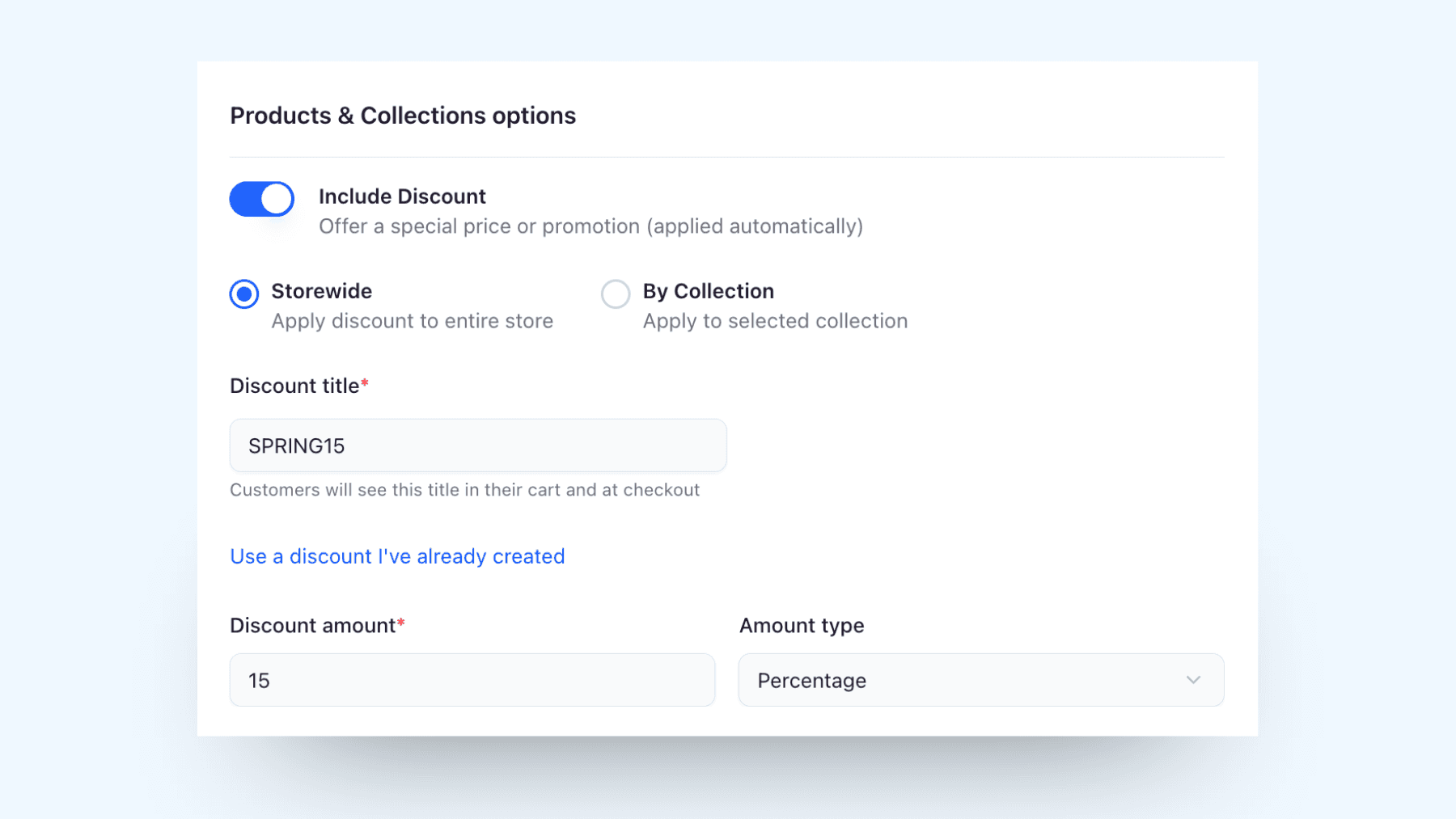
The discount toggle will appear below the selection.
Click it and enter either the percentage or fixed amount you want to offer.
Bluumly will automatically create and apply the discount to your Shopify store.
Start experimenting with strategic offers and turn more clicks into sales.
Updated Permissions to Access New Bluumly Features
With the latest improvements and new features in Bluumly, we’ve also updated our app permissions (scopes). To continue enjoying all the new functionality, you’ll simply need to accept the updated permissions.
You can easily do this by signing into your Bluumly account and clicking the “Update” button in the banner at the top of the page. Once accepted, you’ll be able to take full advantage of the latest Bluumly features.
The updated permissions include:
View Customers and Blog Contributors
View and edit store data: View customers, edit discounts, view online store, and view Shopify admin
These permissions allow Bluumly to properly support new features such as campaign-based discounts and improved marketing automation, while ensuring your store continues to run smoothly.
Pause Individual Posts Inside Your Campaigns
Remember when we introduced the option to pause campaigns?
Well now we have a new update: You can pause individual posts within a campaign — whether it’s part of a multi-day campaign or a single-post campaign shared across multiple channels.
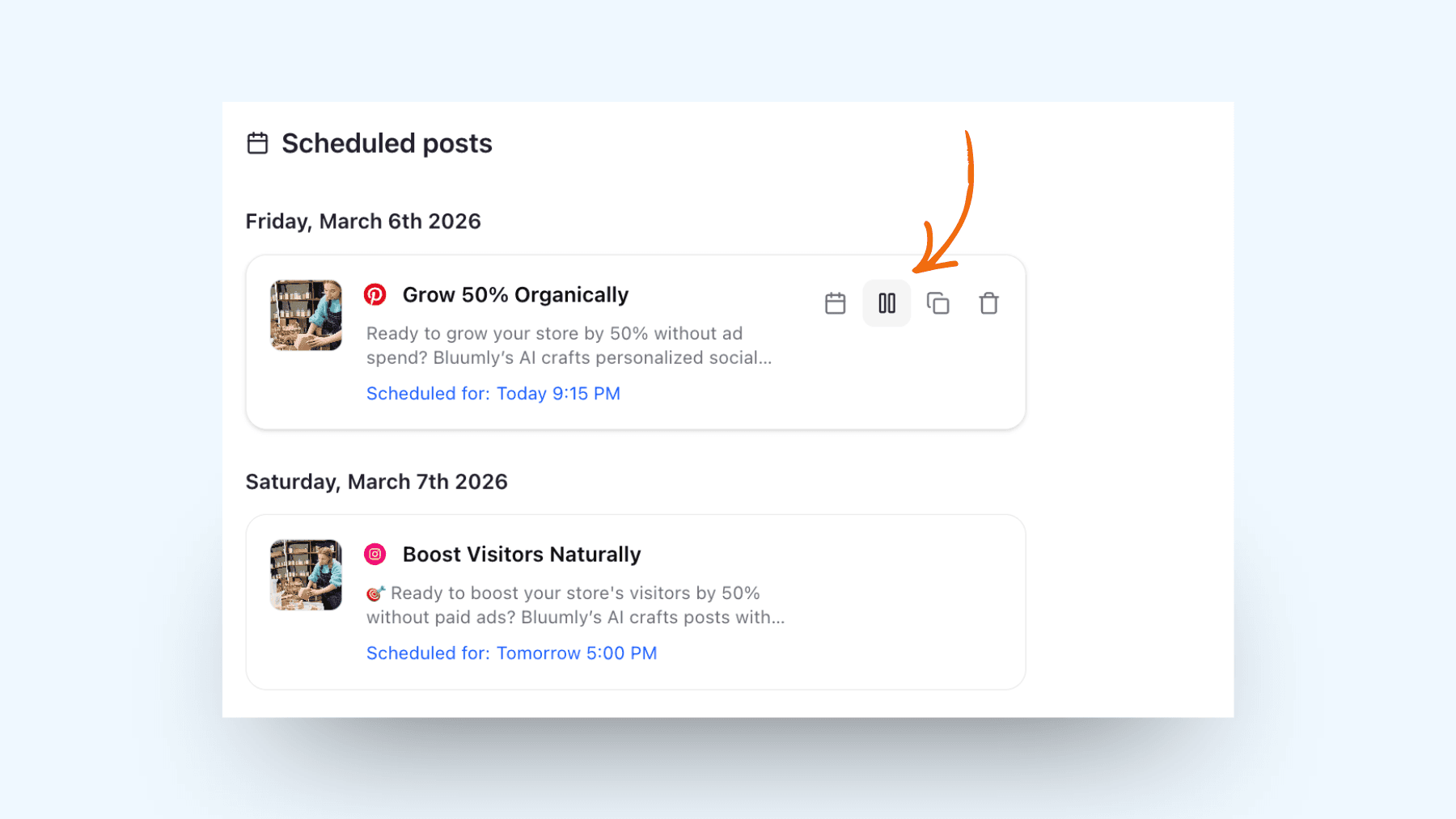
To pause a post, simply open any scheduled campaign and hover over the post you’d like to pause. You’ll see a pause icon appear. Click it, and the post will immediately move to Drafts within the same campaign, where you can easily reschedule it or keep it as a draft for later.
More control, more flexibility — so you can adjust your campaigns whenever you need.
See you next Friday with more updates!